01 · Control
Apple cluster control
Many iPhones on one PC—control one device, a group, or the whole fleet.
- Connect, group, and manage many devices
- Batch actions instead of phone-by-phone tapping
- USB, WiFi, Bluetooth, and OTG hardware
Apple cluster control · Screen mirroring · Automation scripts
Run a fleet of iPhones from your PC: manage devices, mirror screens, and automate repeat work.
No jailbreak or signing. USB, WiFi, Bluetooth, and OTG external hardware supported.
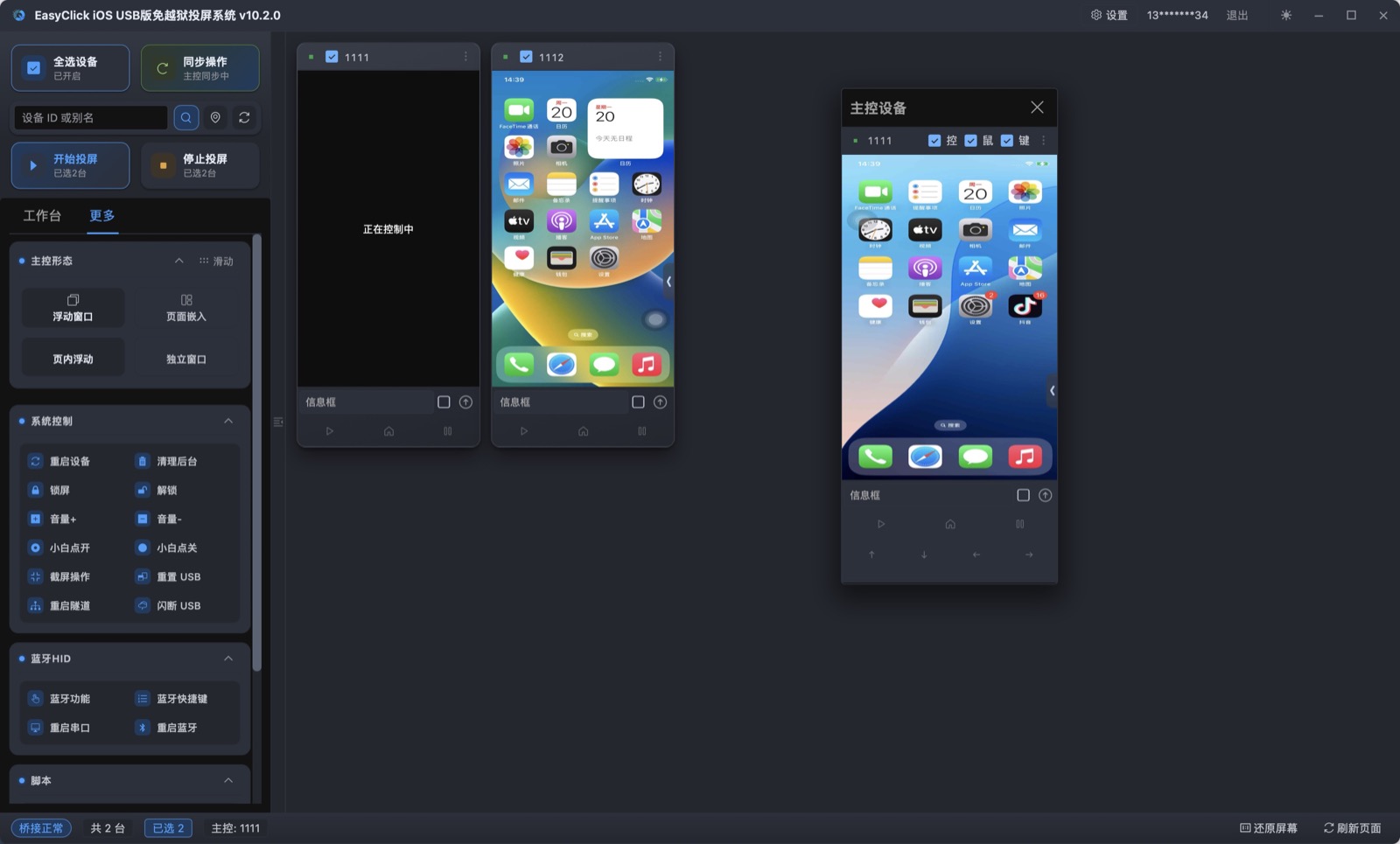
Manage many phones, see screens on your PC, and let scripts handle taps.
01 · Control
Many iPhones on one PC—control one device, a group, or the whole fleet.
02 · Mirror
Live iPhone screens on your PC—portrait or landscape—for progress checks and demos.
03 · Scripts
Record or write flows, send to many phones, schedule loops when you need them.
Cluster control manages devices, mirroring shows progress, scripts handle repetition.
Control, mirroring, and scripts all need a stable link—plus Bluetooth and OTG hardware.
Anywhere you need fleet control, mirrored progress, and scripted repeat work.
One phone by hand is fine; at fleet size, the gap is obvious.
| Manual | Apple cluster control | |
|---|---|---|
| Devices at once | Mostly one | Many from one PC |
| Visibility | Pick up each phone | Central mirroring on PC |
| Repeat tasks | Human taps, tiring | Scripts run in batch |
| Jailbreak / signing | — | Not required |
Cluster control, mirroring, and automation. View all
Cluster control manages many devices; mirroring shows screens on your PC; automation scripts run repeat flows and dispatch to many phones. Using all three saves the most effort.
No. Install without jailbreak or signing; jailbroken phones can still be used.
Stable, long mirroring → USB. Same LAN, fewer cables → WiFi. See the connection guide.
Supported alongside USB and WiFi. See Bluetooth and OTG.
iOS 13 through iOS 27 for cluster control, mirroring, and automation scripts.
This site covers day-to-day cluster control, mirroring, and scripts; technical install depth lives on iosqunkong.com/en.
Pick USB or WiFi and bring your first batch of iPhones under control.